1. Introduction
Thank you for entering Emile’s Free Times Table World Cup!
We really hope that it will help engage your students (particularly the Year 4) and lead to some big improvements in times table recall (Manchester Uni saw a 24% increase in 3 months over 4,000 schools).
We are running webinars daily to help teachers so please feel free to register and come along.
2. Logging on to Emile:
Teachers can log on to Emile here, using their email address and an initial password of “password” (please change this password once you have logged in by clicking on your name in the top right corner).
3. Setting Up a Class:
Classes can be set up in two ways:
Both ways are GDPR compliant.
3a. Directly with Emile
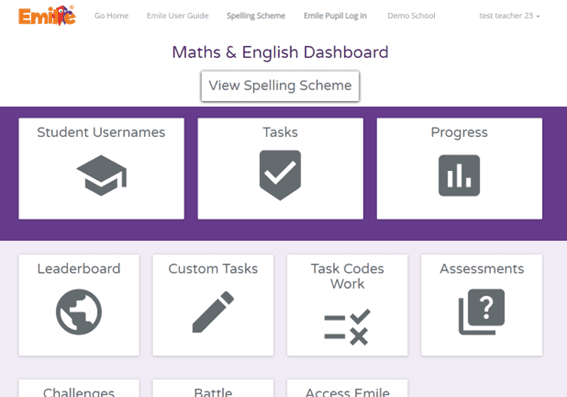
Once you have logged into Emile, you will reach our Maths & English Dashboard:
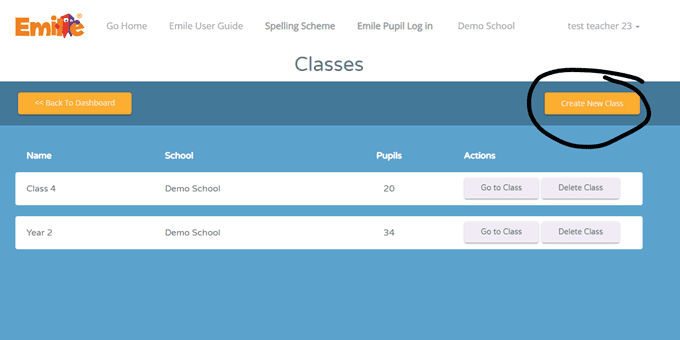
Select “Student Usernames” and then “Create New Class” (see below).
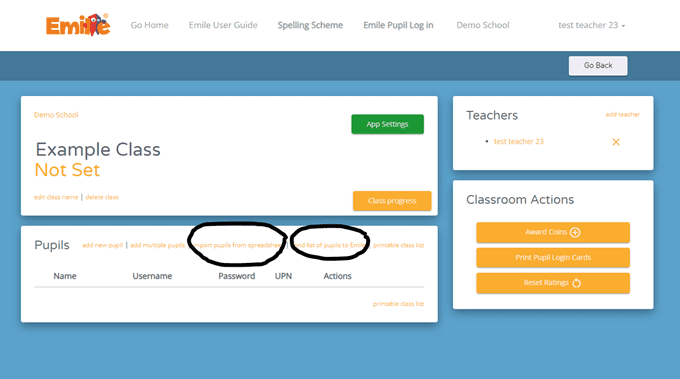
You then have a choice, you can upload your students with a csv file (excel type file) or send your class or school list securely to Emile:
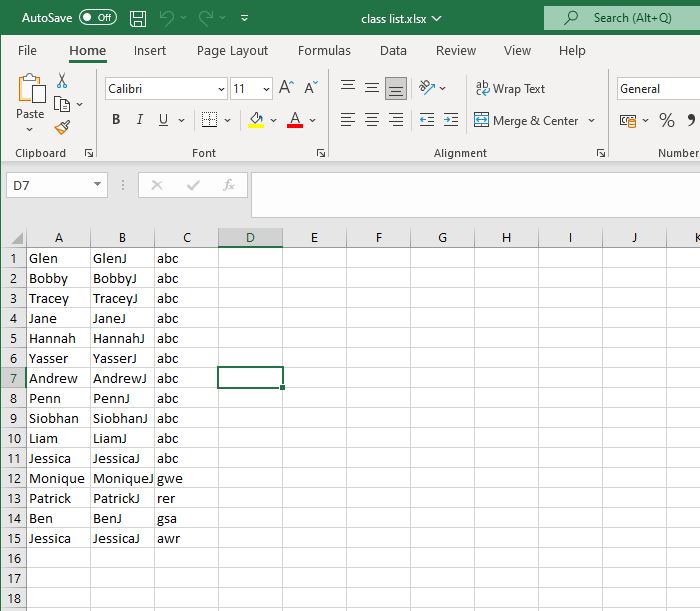
If you want to upload your students using a csv file, please make sure the columns are: name, username, password, and UPN (optional). There is no need for a header row.
Please note that usernames have to be unique in the school and that passwords do NOT need to be unique and have to be three characters or more.
Alternately, if you send us your class list (or indeed school list), we will create all your students’ log in details typically within 3 working hours.
Once all your students are set up, they are ready to take part in the Times Table World Cup!
3b. Using Wonde to sync with your MIS
On entering the Times Table World Cup, you will have requested to use Wonde to set up your students.
On receiving this request, we contact Wonde and request access to some of your data.
Wonde will then confirm we are allowed access before sharing with Emile.
Once we have this data, we will generate usernames and passwords for all your students.
If you now log into Emile, you will reach our Maths & English Dashboard:
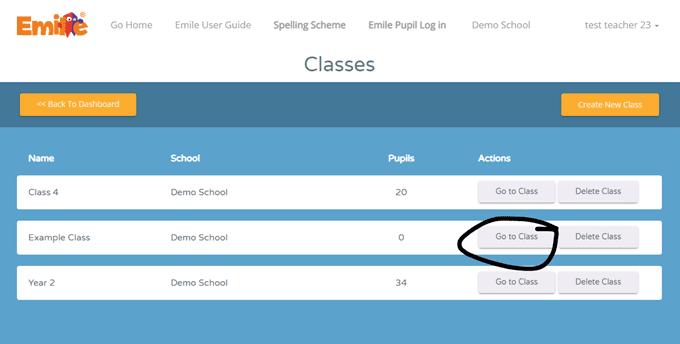
Select “Student Usernames”.
You should then see all your school classes and be able to see students’ usernames and passwords.
Share Student Log in Details.
We recommend printing off the students’ usernames and passwords:
Introduction
Hopefully, the answer to “How Students Take Part in the Times Table World Cup” is with a smile .
This Guide assumes you have usernames and passwords for your students already. If not, please see above .
Logging on to Emile:
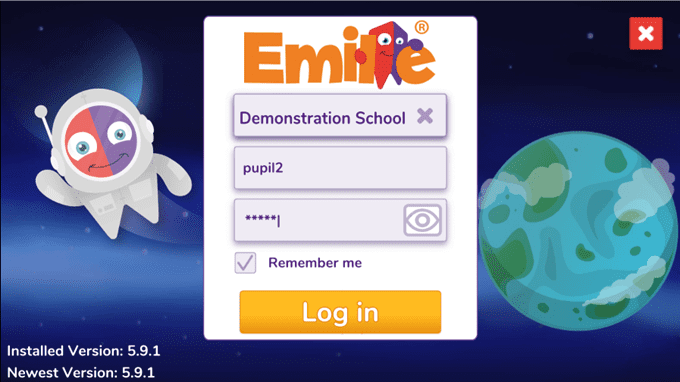
Students can log on to Emile using either:
They should choose their school either by name or by post code (especially helpful for schools such as St James or St Marys) from the dropdown box, then enter their username and password!
Please make sure you are using version 5.9.1 or higher.
(You can see the version number in the bottom left corner of the log in screen)
The Times Table World Cup
So that using Emile impacts Year 4 MTC scores, there are only certain game types that allow students to score points for the world cup. Namely those MTC style games that cover all the times tables 2-12 with 6 seconds to answer.
Your students have access to a number of different games (including spelling games) but these of course do not contribute points.
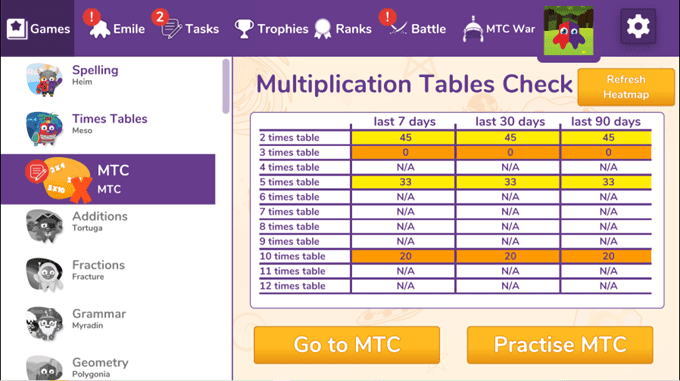
Using “Go to MTC” is the easiest way for students to contribute.
Alternately, they can click on MTC Cup or MTC War and see how they are doing, how the school is doing and the top 5 performers. On that screen, there is a “Play” button.
How Scores are Determined.
When playing an appropriate MTC style game, every correct answer means a point for that student. Wrong answers have no impact. We are rewarding effort to encourage students to do the game again and again.
Students are ranked in order of points. Each student is then given a score based on their rank. This is so that 3 or 4 students that score masses of point don’t overwhelm the contribution of other students.
Finally, the average score of the students determines the school’s position.
Webskape Ltd,
Green Rake House,
Bury, BL9 6TR
0161 615 5674
Emile@Webskape.co.uk